
No loss in quality
A compatible picture is simply repackaged — usually in seconds. Only what Apple devices can’t play gets converted.

Videos to MP4 for Mac — TV app, Plex, Jellyfin & more
Convertag recognises films and TV shows, keeps picture and sound without any loss in quality and puts everything where you watch it. MP4 files just get new info.
Coming soon to the Mac App Store For Macs with Apple silicon, macOS 14 or later

A compatible picture is simply repackaged — usually in seconds. Only what Apple devices can’t play gets converted.
Image subtitles from Blu-ray and DVD become text. Matching .srt files next to the video come along automatically.
Watch folders — new videos end up in your library, ready to play, even with the window closed.
For every video, Convertag shows track by track what stays, what gets adapted and what’s dropped — with size and time. With “My languages”, only the audio and subtitle tracks you need are kept.

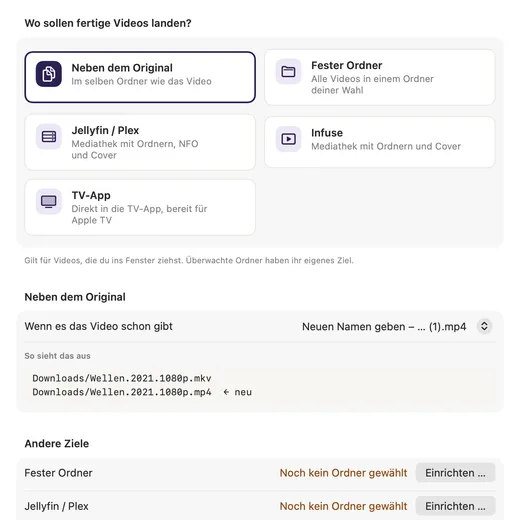
Choose where finished videos go — for everything at once or for each watched folder.
If the video already exists, it gets a new name, replaces the old one or is skipped — your choice.
Convertag reads title, year, season and episode from the file name and looks up the matching info. If a match isn’t quite certain, the app asks instead of guessing.
Title, description, genre, director, release year and artwork then sit inside the MP4 — the way the TV app, Infuse and Plex show them. In English or German.
The info comes from OMDb and Wikidata. If you have your own TMDb key, you can add it.
Add a folder and Convertag takes care of every new video in it — as soon as the file has finished copying. Each folder has its own settings: destination, languages, what happens to the original.
If you like, Convertag starts at login and works quietly from the menu bar. Originals go to the Trash at most, never straight away for good.
Converting and text recognition happen entirely on your Mac. To look up info, only the title and year from the file name leave it — never the file, never the file name itself. No account, no ads, no usage statistics.

For the TV app, Apple TV, QuickTime, Infuse, Plex and Jellyfin.
Coming soon to the Mac App Store For Macs with Apple silicon, macOS 14 or later